Keep five setups ready
Choose one of five device profiles, make adjustments, then use Update to send them to the mouse. Import and export profile files to keep a backup.
ROCCAT Tyon Control helps you configure the Tyon gaming mouse on your Mac. Set up onboard profiles, tune the sensor, personalize the lights and put every button to work.
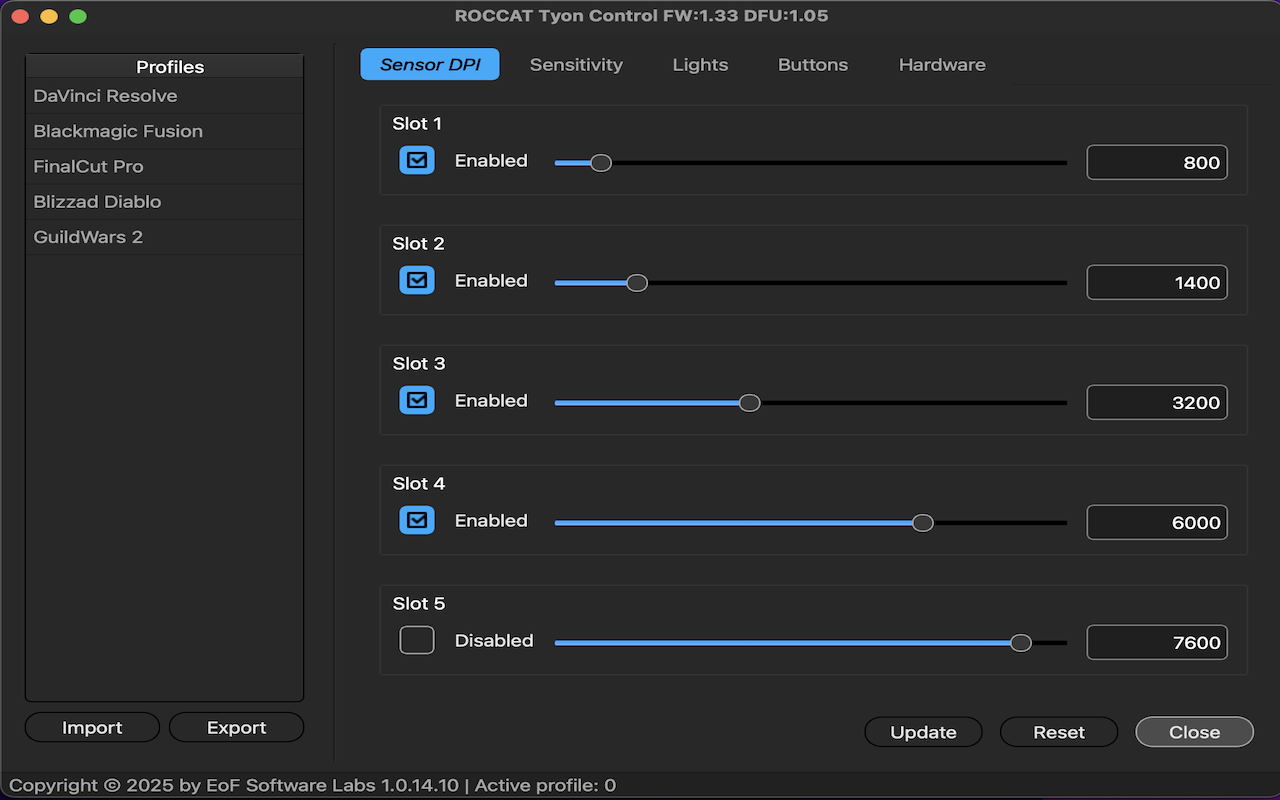
Configure the settings that matter to your hand, your surface and your play style.
Choose one of five device profiles, make adjustments, then use Update to send them to the mouse. Import and export profile files to keep a backup.
Enable the DPI slots you use, choose the active slot, adjust X and Y sensitivity independently, and select a 125 Hz or 250 Hz polling rate.
Assign actions, media controls or keyboard shortcuts to top and side buttons. EasyShift[+] gives supported buttons a second layer while held.
A quick path from first launch to settings saved on your mouse.
Connect your Tyon, open the app and select a profile from the list. The active profile is shown in the app footer.
Choose which of the five DPI slots are enabled, set their values and select the active slot. Adjust X/Y sensitivity if your movement needs a finer tune.
Choose a lighting effect and color. In Buttons, select a button group and assign an action. Configure the EasyShift[+] layer separately.
Click Update to transfer settings to the mouse. Use Export to save a profile file; Reset restores device profiles to their defaults.
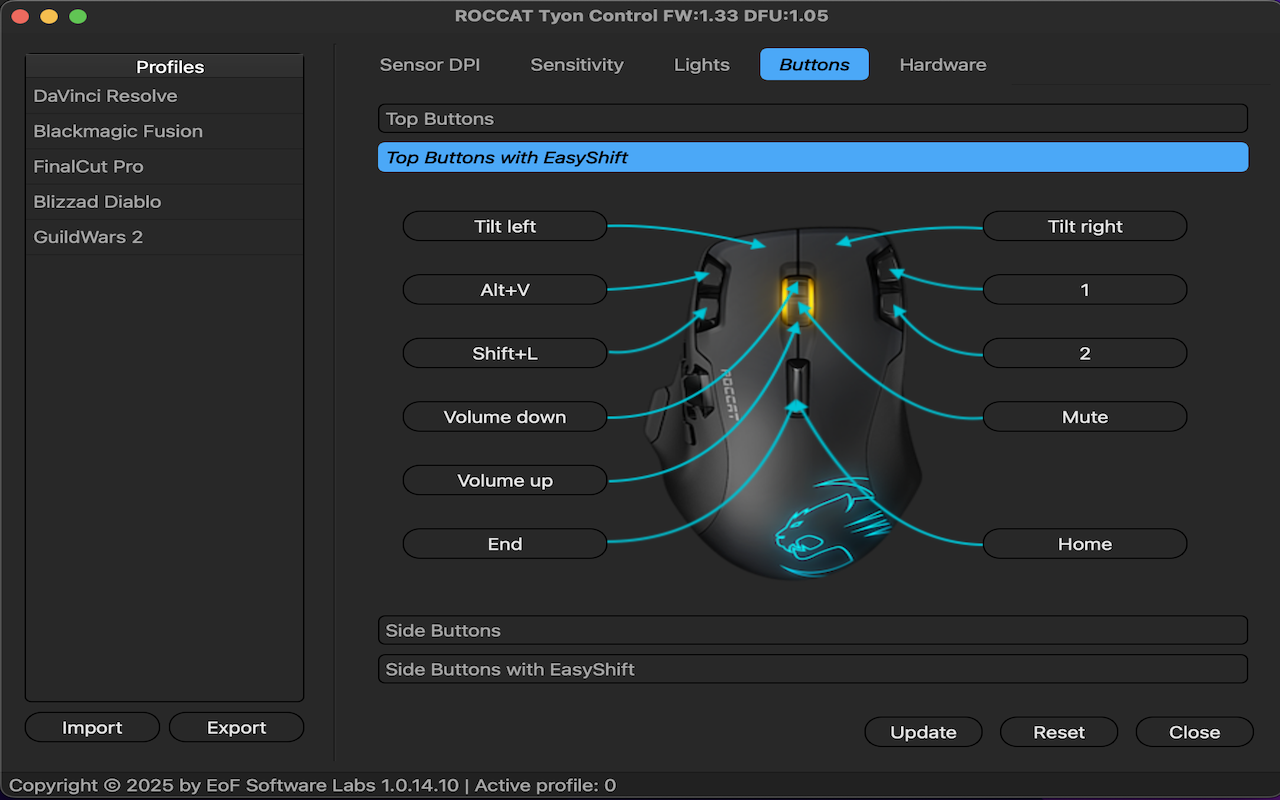
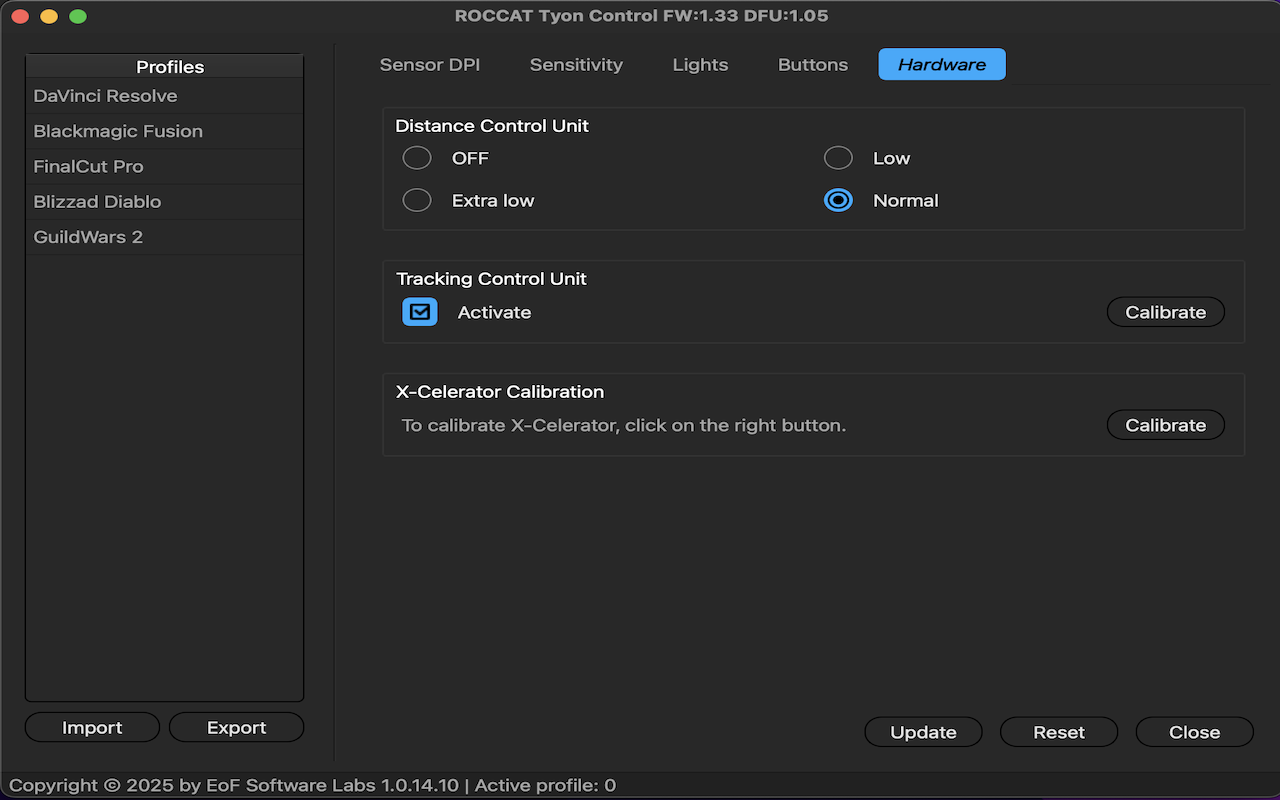
A look at the settings panels you'll use to configure the mouse.
Configure five sensor levels, enable the slots you need and choose the active value.
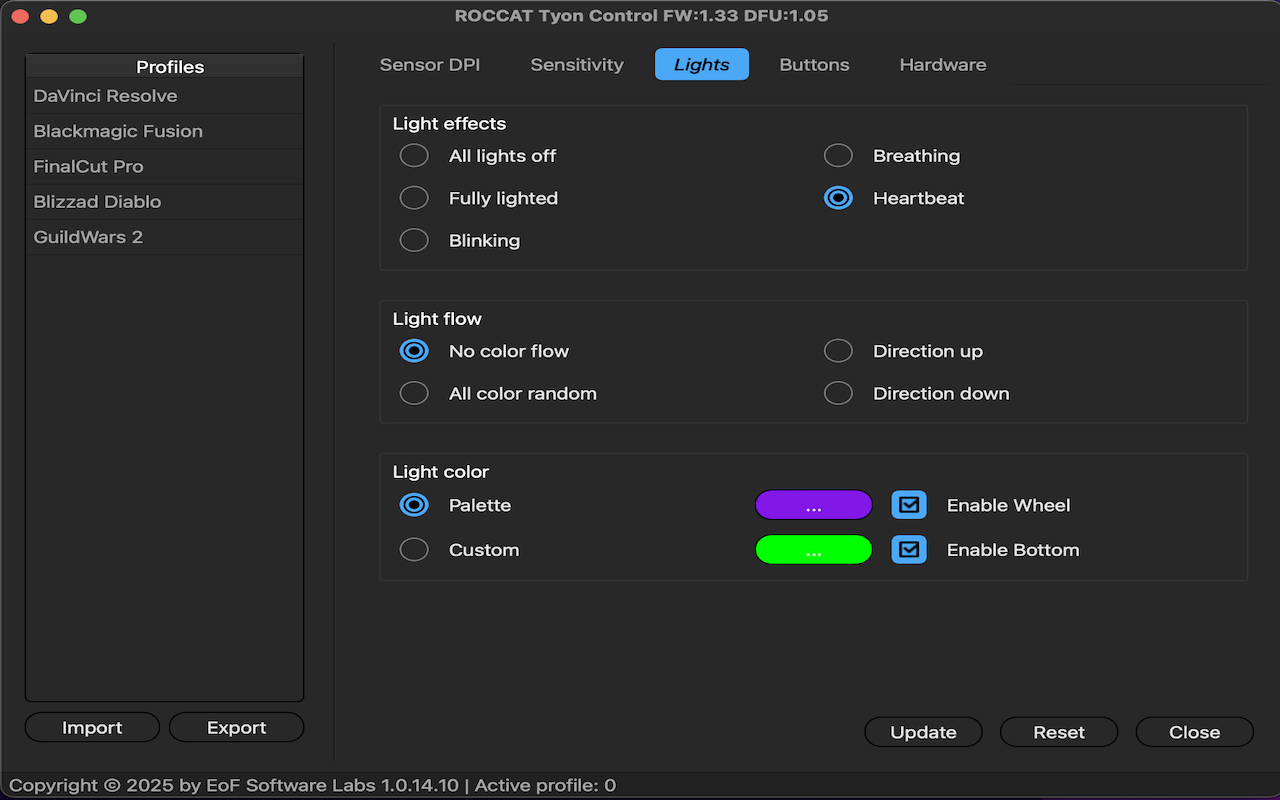
Select an effect, flow direction and color for the mouse lighting.
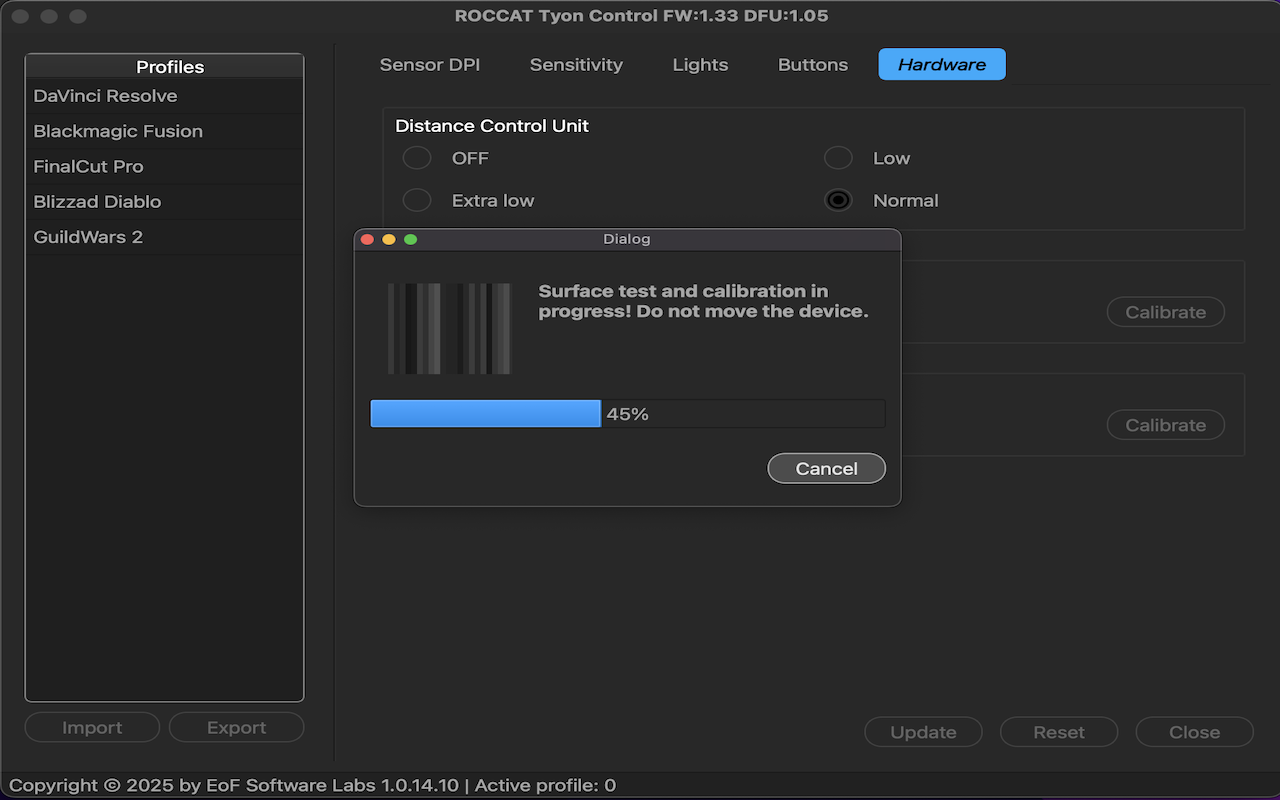
Calibrate tracking behavior to the surface you play on.
End User License Agreement and Privacy Notice for this app and this guide.
Effective date: 24 November 2026
This End User License Agreement (“Agreement”) is between you and the independent developer of ROCCAT Tyon Control (“Developer”). It governs your use of the ROCCAT Tyon Control application (“App”). By installing or using the App, you agree to this Agreement. If you do not agree, do not install or use the App.
Subject to this Agreement, the Developer grants you a personal, limited, non-exclusive, non-transferable, revocable license to install and use the App on Apple-branded devices you own or control, for your personal purposes, in accordance with applicable App Store terms. The App is licensed, not sold.
You may not copy, modify, distribute, sell, sublicense, reverse engineer, decompile or attempt to derive the source code of the App, except to the extent such restriction is prohibited by applicable law or permitted by the terms of an applicable open-source license. You may not use the App unlawfully or interfere with devices or services you do not own or have permission to configure.
You are responsible for your use of the App and for keeping copies of profile files you want to retain. Device behavior may vary with hardware, firmware, operating system and connected software. You choose and apply configuration settings at your own discretion.
The App and its original content are owned by the Developer or its licensors. Third-party components remain subject to their own licenses, which take precedence where applicable. ROCCAT and Tyon are marks of their respective owner; this independent App is not affiliated with or endorsed by the hardware manufacturer.
The Developer may update, change or discontinue the App or features. This Agreement applies to updates unless an update is accompanied by different terms.
To the maximum extent permitted by law, the App is provided “as is” and “as available,” without warranties of any kind, whether express, implied or statutory, including merchantability, fitness for a particular purpose and non-infringement. Nothing in this Agreement excludes rights that cannot be excluded under applicable law.
To the maximum extent permitted by law, the Developer will not be liable for indirect, incidental, special, consequential or exemplary damages, or loss of data, profits or goodwill arising from use of the App. The Developer’s total liability for claims relating to the App will not exceed the amount you paid for the App during the 12 months before the event giving rise to the claim. These limits do not apply where prohibited by law, including liability that cannot legally be limited.
This Agreement ends automatically if you materially breach it. You may end it at any time by uninstalling and ceasing to use the App. On termination, stop using and delete your copies of the App.
This Agreement is governed by the laws applicable to the Developer’s place of residence, excluding conflict-of-law rules, except where mandatory consumer protection law provides otherwise. If any provision is unenforceable, the remaining provisions remain in effect. This Agreement is the complete agreement concerning the App and does not limit non-waivable statutory rights.
This is a general-use license notice, not legal advice. Local consumer laws may provide additional rights.
Effective date: 24 November 2026
This notice explains how ROCCAT Tyon Control (“App”) and this static support website handle information. The App configures a connected mouse. The website is informational and does not include analytics, advertising trackers, accounts or a server-side contact submission service.
The App communicates locally with a compatible connected mouse to read and apply configuration such as profiles, buttons, sensor settings and lighting. The project source does not describe a developer-operated account or analytics service. Profile files you import or export are handled on your device and at the locations you choose. Your macOS, device drivers and the Mac App Store may process information under their own privacy terms.
If you use the contact form, your email application opens with a draft addressed to the support contact. The form does not transmit data to this website. Information you choose to include is sent only if you send that email, and then is handled by your email provider and the recipient. Avoid including passwords or sensitive personal information.
This static page uses no first-party cookies, analytics or advertising pixels. If you follow the external App Store or project links, those services may process information under their own notices. Your browser or hosting provider may process standard technical request data to deliver the page.
The App developer does not receive information through this website's contact form unless you send an email. Email correspondence is retained only as needed to respond, maintain support records or meet legal obligations. Depending on where you live, you may have rights to request access, correction or deletion of personal information; contact support to make a request. The App and website are not directed at children under 13, and no personal information is knowingly collected from children through this site.
No internet transmission or storage method can be guaranteed completely secure. This notice may be updated when the App or site practices change; the effective date above will be revised. For privacy questions, use the Contact support form.
Acknowledgements for the hardware ecosystem and open-source work this project builds on.
ROCCAT and Tyon are trademarks and/or registered trademarks of their respective owner. Product names and references are used only to identify supported hardware. ROCCAT Tyon Control is an independent project and is not affiliated with, sponsored by or endorsed by the hardware manufacturer.
All hardware marks and product imagery belong to their respective rights holders.
This project draws on the ROCCAT Linux driver and utilities project hosted on SourceForge. The project repository is licensed under the GNU General Public License, version 3 (GPL-3.0), as indicated by its included license file. Refer to the source repository and bundled license for the applicable source, notices and terms.
ROCCAT project on SourceForge ↗ · View this repository’s GPL-3.0 license
Third-party libraries or bundled components may have additional license terms. Their original notices remain applicable.
Download ROCCAT Tyon Control from the Mac App Store and start with a profile that fits the way you play.
Tell us what you need help with or share an idea. Your email app will open with your message ready to send.